Comment installer Netflix sur une TV ? Toutes les méthodes


.png)
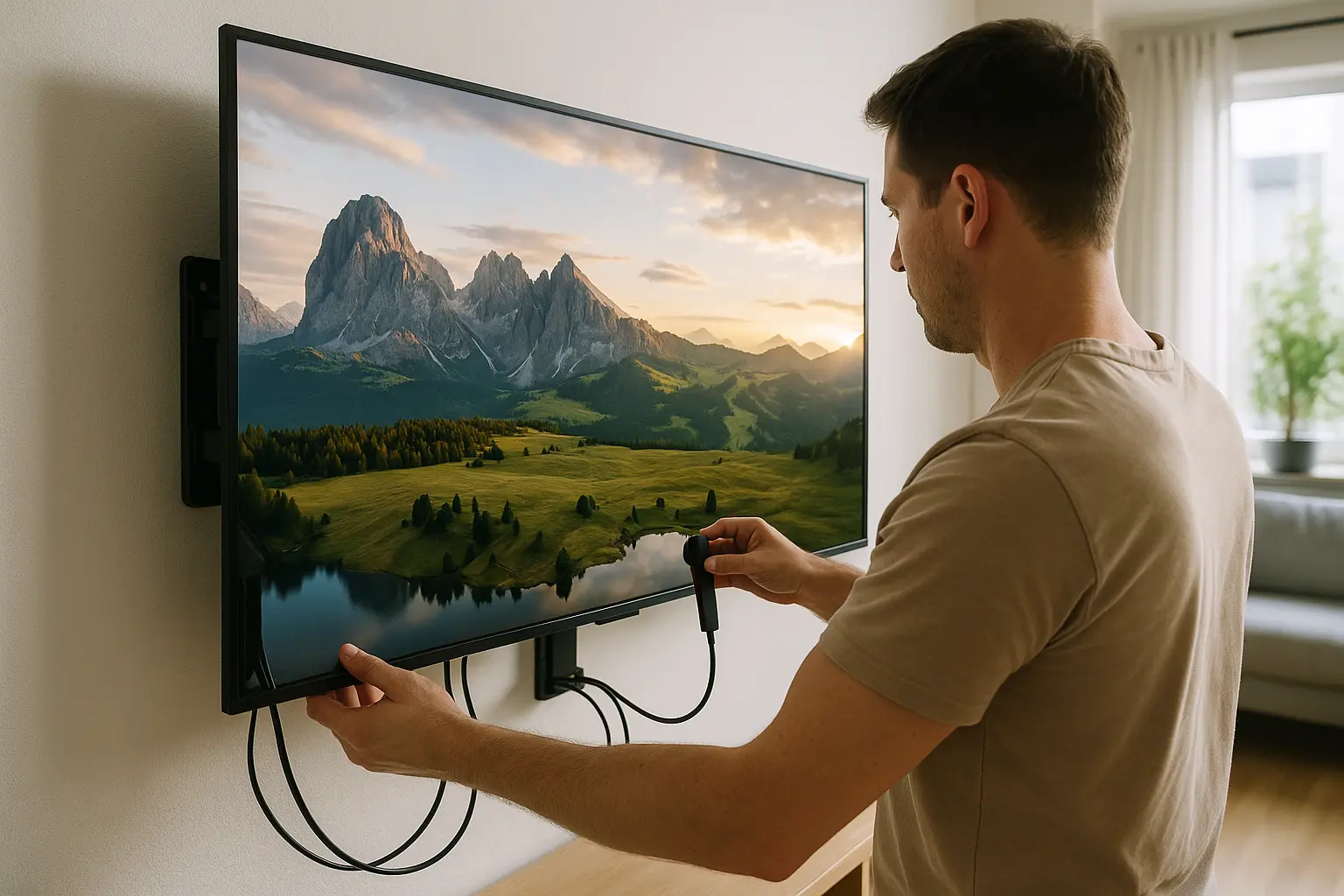
Quelle méthode choisir pour mettre Netflix sur une TV ?
- Type de téléviseur|Méthode conseillée|Matériel nécessaire
- Smart TV compatible|Installer ou ouvrir l’application Netflix|Aucun appareil supplémentaire
- Android TV ou Google TV|Télécharger Netflix depuis la boutique d’applications|Aucun appareil supplémentaire
- TV avec box Internet|Ouvrir Netflix depuis le menu de la box|Box compatible
- TV non connectée|Ajouter une clé ou un boîtier de streaming|Port HDMI disponible
- TV avec console compatible|Installer Netflix sur la console|PlayStation ou Xbox compatible
- TV utilisée avec un ordinateur|Relier l’ordinateur en HDMI|Câble HDMI compatible
- TV compatible avec Cast|Diffuser depuis l’application mobile|Téléphone et appareil compatibles
La méthode la plus confortable reste l’application installée directement sur la TV ou sur un appareil de streaming. Vous pourrez ensuite tout contrôler avec la télécommande, sans garder votre téléphone à proximité.
Vérifier si votre téléviseur est compatible avec Netflix
Netflix fonctionne sur de nombreuses Smart TV, box, consoles et clés de streaming. L’application peut être préinstallée ou disponible dans la boutique d’applications du téléviseur.
Commencez par regarder :
- si un bouton Netflix apparaît sur la télécommande
- si Netflix est visible sur l’écran d’accueil
- si votre TV possède une boutique d’applications
- si une mise à jour du système est disponible
- si le modèle figure parmi les appareils compatibles avec Netflix
Certaines télévisions et certains lecteurs fabriqués avant 2015 peuvent ne plus prendre en charge le service. Cela dépend toutefois du modèle et de son système, pas uniquement de son âge.
Si l’application a disparu alors qu’elle fonctionnait auparavant, vérifiez d’abord les mises à jour de la TV. Lorsque le fabricant ne propose plus Netflix sur l’appareil, l’ajout d’une clé ou d’un boîtier HDMI reste généralement la solution la plus simple.
Comment installer Netflix sur une Smart TV ?
Sur la plupart des téléviseurs récents, Netflix se trouve déjà dans le menu principal. Si ce n’est pas le cas, vous pouvez le télécharger depuis la boutique d’applications.
Installer l’application
- Connectez la télévision à Internet en Wi-Fi ou avec un câble Ethernet
- Ouvrez le menu des applications
- Accédez à la boutique intégrée à la TV
- Recherchez « Netflix »
- Sélectionnez l’application puis lancez l’installation
- Ouvrez Netflix une fois le téléchargement terminé
Selon la marque, la boutique peut porter un nom différent. Le fonctionnement reste le même : recherchez l’application, installez-la puis ouvrez-la.
Si Netflix n’apparaît pas dans les résultats, ne téléchargez pas de fichier depuis un site inconnu. Une application non prévue pour votre téléviseur risque de ne pas fonctionner ou de présenter un problème de sécurité.
Installer Netflix sur Android TV ou Google TV
Sur Android TV et Google TV, la procédure passe généralement par le Google Play Store :
- Ouvrez l’écran d’accueil
- Sélectionnez « Applications »
- Ouvrez le Google Play Store
- Recherchez Netflix
- Sélectionnez « Installer »
- Lancez l’application et connectez-vous
Sur certains appareils, Netflix est préinstallé et ne peut pas être supprimé. Vous pourrez simplement l’ouvrir ou installer les mises à jour proposées.
Comment connecter son compte Netflix à la TV ?
Une fois l’application ouverte, plusieurs méthodes d’identification peuvent apparaître. Le QR code est souvent la plus rapide, car il évite de saisir une longue adresse e-mail avec la télécommande. 📺
Se connecter avec le QR code
- Ouvrez Netflix sur la télévision
- Sélectionnez « S’identifier »
- Ouvrez l’appareil photo de votre téléphone
- Scannez le QR code affiché sur la TV
- Touchez le lien qui apparaît
- Connectez-vous à votre compte si nécessaire
- Confirmez l’identification de la télévision
Votre compte s’ouvre alors automatiquement sur la TV. Le QR code doit uniquement être scanné depuis l’écran de l’application Netflix.
Se connecter depuis un navigateur
Si un code apparaît à l’écran, vous pouvez également :
- ouvrir Netflix sur la TV
- sélectionner « S’identifier »
- vous rendre sur netflix.com/tv2 depuis un téléphone ou un ordinateur
- suivre les instructions affichées
- confirmer la connexion de la télévision
Sur Apple TV, Netflix peut vous rediriger vers une adresse d’activation différente indiquée directement à l’écran.
Saisir ses identifiants avec la télécommande
Si aucun QR code n’est proposé, saisissez simplement l’adresse e-mail et le mot de passe du compte. Vérifiez bien l’adresse affichée avant de valider : une faute de frappe suffit à provoquer un message d’identification impossible.
Vous n’avez pas encore de compte ? Le guide expliquant comment s’abonner à Netflix détaille l’inscription et les différentes formules.
Comment avoir Netflix sur une TV non connectée ?
Il n’est pas nécessaire de remplacer une télévision qui fonctionne encore. Si elle dispose d’un port HDMI, plusieurs solutions permettent d’ajouter Netflix.
Utiliser une clé ou un boîtier de streaming
Une clé de streaming transforme une télévision classique en TV connectée. Elle se branche sur un port HDMI et possède sa propre connexion Internet.
Vous pouvez notamment utiliser :
- un appareil Google TV
- un Amazon Fire TV
- une Apple TV
- une box Android TV compatible
- un autre lecteur de streaming prenant en charge Netflix
Après le branchement, sélectionnez la bonne source HDMI, connectez l’appareil au Wi-Fi puis installez Netflix depuis sa boutique d’applications.
Cette solution est généralement plus agréable qu’un câble relié en permanence à un ordinateur. Elle permet de piloter Netflix avec une télécommande et de profiter aussi d’autres services de streaming.
Passer par une box Internet
De nombreuses box fournies par les opérateurs intègrent Netflix. L’application peut apparaître dans le menu TV, dans la rubrique des applications ou sur une chaîne dédiée.
Si vous ne la trouvez pas, recherchez le modèle de votre box dans le centre d’aide Netflix ou consultez l’assistance de votre opérateur.
Installer Netflix sur une console
Netflix est disponible sur plusieurs consoles PlayStation et Xbox. Ouvrez la boutique de la console, recherchez Netflix puis installez l’application.
Cette méthode est pratique si la console reste branchée à la télévision. Elle consomme toutefois généralement plus d’énergie qu’une petite clé de streaming.
Relier un ordinateur avec un câble HDMI
Un ordinateur peut également envoyer l’image vers la TV :
- branchez le câble HDMI sur l’ordinateur et le téléviseur
- sélectionnez la bonne entrée HDMI avec la télécommande
- ouvrez Netflix dans un navigateur compatible
- lancez le programme
- activez le mode plein écran
Si le son reste sur l’ordinateur, ouvrez ses paramètres audio et choisissez le téléviseur comme sortie.
Pour la 4K, l’ordinateur, le câble, le port HDMI et l’écran doivent tous être compatibles avec les protections vidéo nécessaires. Un élément non compatible peut limiter la qualité ou produire un écran noir.
Peut-on mettre Netflix du téléphone à la TV ?
La diffusion depuis un téléphone reste possible sur certains appareils compatibles avec Cast. Il faut que le téléphone et le téléviseur soient connectés au même réseau.
- Ouvrez Netflix sur votre smartphone
- Sélectionnez votre profil
- Appuyez sur l’icône Cast si elle apparaît
- Choisissez la télévision ou l’appareil de streaming
- Lancez le film ou la série
Le téléphone sert alors de télécommande pour mettre en pause, reprendre la lecture ou changer les sous-titres.
Sur certains anciens Chromecast sans télécommande, la diffusion n’est pas compatible avec l’offre contenant de la publicité. Si l’icône Cast n’apparaît pas, ouvrez directement Netflix sur la TV ou sur un appareil de streaming récent.
AirPlay et la duplication d’écran fonctionnent-ils avec Netflix ?
Non, Netflix ne prend plus en charge AirPlay ni la duplication d’écran.
Si vous essayez de dupliquer l’écran d’un iPhone, d’un iPad ou d’un Mac, vous risquez d’obtenir un écran noir ou un message d’erreur. Utilisez plutôt :
- l’application Netflix installée sur la TV
- une Apple TV avec l’application Netflix
- un appareil prenant en charge Cast
- un câble et un adaptateur vidéo compatibles
Un adaptateur bas de gamme peut également bloquer la vidéo. Lorsque vous utilisez un câble, privilégiez du matériel compatible avec les protections HDCP demandées par Netflix.
Quelle connexion Internet faut-il pour Netflix sur TV ?
Netflix adapte automatiquement la qualité de l’image au débit disponible. Une connexion lente ou instable peut donc produire une image floue, des coupures ou un chargement sans fin.
- Qualité|Résolution|Débit recommandé
- HD|720p|3 Mbit/s ou plus
- Full HD|1080p|5 Mbit/s ou plus
- Ultra HD|4K|15 Mbit/s ou plus
Pour tester la connexion depuis Netflix :
- ouvrez le menu de l’application
- sélectionnez « Obtenir de l’aide »
- choisissez « Vérifier votre réseau »
Vous pouvez aussi lancer un test depuis Fast.com, le service de mesure proposé par Netflix.
Pour profiter de la 4K, il faut également une offre Netflix compatible, un titre disponible dans cette qualité et une chaîne matérielle entièrement compatible : téléviseur, lecteur, câble et port HDMI.
Que faire si l’application Netflix est introuvable ?
Commencez par rechercher Netflix dans la boutique d’applications de la TV. Si aucun résultat n’apparaît :
- redémarrez la télévision
- ouvrez les paramètres système
- recherchez une mise à jour
- installez-la puis relancez la TV
- cherchez de nouveau Netflix
Vérifiez également le pays configuré sur le téléviseur. Certaines boutiques d’applications changent selon la région sélectionnée.
Si la TV est à jour mais que Netflix reste introuvable, le modèle n’est peut-être plus pris en charge. Dans ce cas, utilisez une box, une clé de streaming ou une console compatible. Vous éviterez ainsi de remplacer tout le téléviseur. 💡
Netflix ne fonctionne pas sur la TV : les solutions rapides
- Problème|Première solution|Si le problème continue
- Netflix ne s’ouvre pas|Débrancher la TV pendant une minute|Mettre à jour ou réinstaller l’application
- Chargement sans fin|Tester la connexion Internet|Redémarrer la box et essayer un câble Ethernet
- Écran noir avec du son|Changer de port ou de câble HDMI|Désactiver AirPlay et la duplication d’écran
- Image floue|Vérifier le débit dans Netflix|Contrôler l’offre et les réglages de qualité
- Application introuvable|Mettre à jour le système de la TV|Ajouter un appareil de streaming
- Identification impossible|Utiliser le QR code ou netflix.com/tv2|Réinitialiser le mot de passe
- Netflix n’est plus disponible|Vérifier la compatibilité du modèle|Utiliser une box, une clé ou une console
- Message lié au foyer|Mettre à jour le foyer depuis la TV principale|Vérifier les appareils connectés au compte
Pour un diagnostic plus détaillé, consultez le guide consacré aux problèmes Netflix sur TV.
Si un code d’erreur apparaît, notez-le avant de modifier les réglages. Une recherche avec ce code dans le centre d’aide permet souvent d’obtenir une procédure adaptée à l’appareil concerné.
Comment mettre à jour le foyer Netflix sur une TV ?
Le foyer Netflix rassemble les appareils connectés à Internet depuis le lieu où le compte est principalement utilisé. Une nouvelle box, un déménagement ou un changement de réseau peut déclencher une demande de vérification.
Pour mettre à jour le foyer :
- connectez la TV au réseau Internet principal
- ouvrez Netflix
- appuyez sur le bouton Retour de la télécommande
- sélectionnez « Obtenir de l’aide » ou « Paramètres »
- ouvrez « Gérer le foyer Netflix »
- choisissez « Mettre à jour le foyer Netflix »
- demandez l’envoi d’un e-mail ou d’un SMS
- ouvrez le message reçu et confirmez la mise à jour
Le lien de vérification expire rapidement. Effectuez donc la procédure au moment où vous pouvez consulter l’adresse e-mail ou le téléphone associé au compte.
Si vous ne reconnaissez pas certains appareils, déconnectez-les depuis les paramètres de sécurité avant de recommencer.
Installer Netflix en tant qu’abonné supplémentaire
Netflix permet au titulaire de certaines offres d’ajouter un abonné supplémentaire. Cette personne possède son propre compte, son mot de passe et son profil, au lieu d’utiliser directement les identifiants du titulaire.
Une fois l’invitation acceptée, l’installation sur la TV reste la même :
- installez ou ouvrez Netflix sur le téléviseur
- sélectionnez « S’identifier »
- utilisez l’adresse e-mail et le mot de passe créés lors de l’activation
- choisissez l’option indiquant que vous êtes abonné supplémentaire si elle apparaît
- lancez la lecture
L’abonné supplémentaire peut utiliser un appareil compatible à la fois. Il doit également se trouver dans le même pays que celui où le titulaire a souscrit son offre.
Le guide du partage Netflix sur Spliiit explique comment proposer ou rejoindre une place.
Questions fréquentes sur l’installation de Netflix sur TV
Peut-on installer Netflix sur toutes les Smart TV ?
Non.
La majorité des Smart TV récentes sont compatibles, mais certains anciens modèles ne reçoivent plus les mises à jour nécessaires. Une clé de streaming permet généralement de continuer à utiliser Netflix sur ces téléviseurs.
Comment installer Netflix gratuitement sur une TV ?
Le téléchargement de l’application est gratuit. En revanche, vous devez disposer d’un abonnement Netflix actif ou d’un accès d’abonné supplémentaire pour regarder les programmes.
Faut-il un compte Netflix avant d’installer l’application ?
Non.
Vous pouvez installer l’application avant de créer votre compte. Il est toutefois plus simple de terminer l’inscription depuis un téléphone ou un ordinateur, puis de connecter la télévision.
Peut-on regarder Netflix sur une TV sans Internet ?
Netflix a besoin d’une connexion Internet pour fonctionner sur une télévision. Les téléchargements hors connexion sont conçus pour les appareils mobiles compatibles et ne peuvent pas simplement être transférés vers la TV.
Pourquoi Netflix affiche-t-il un écran noir avec le son ?
Le problème peut venir d’un câble, d’un port HDMI, de l’appareil de streaming ou de la duplication d’écran. Redémarrez les appareils, changez de port HDMI et vérifiez que vous n’utilisez ni AirPlay ni la recopie d’écran.
Comment changer de compte Netflix sur une TV ?
Ouvrez le menu Netflix, sélectionnez « Obtenir de l’aide » ou « Paramètres », puis « Se déconnecter ». Vous pourrez ensuite saisir les identifiants du nouveau compte.
Combien de téléviseurs peut-on connecter à Netflix ?
Un compte peut être enregistré sur plusieurs appareils. Le nombre de vidéos pouvant être regardées simultanément dépend toutefois de la formule. Le comparatif Netflix Standard ou Premium détaille ces différences.
Sources officielles
- Appareils compatibles avec Netflix
- Regarder Netflix sur une télévision
- S’identifier sur Netflix avec un téléviseur
- Retrouver une application Netflix introuvable
- Diffuser Netflix depuis un appareil mobile
- Débits Internet recommandés pour Netflix
- Mettre à jour le foyer Netflix
- Utiliser un abonné supplémentaire
- Résoudre un écran noir avec du son
À lire aussi sur Spliiit
Foire aux questions
Netflix