Comment se déconnecter de Netflix sur télévision (TV/box/console) : méthodes simples + dépannage


.png)
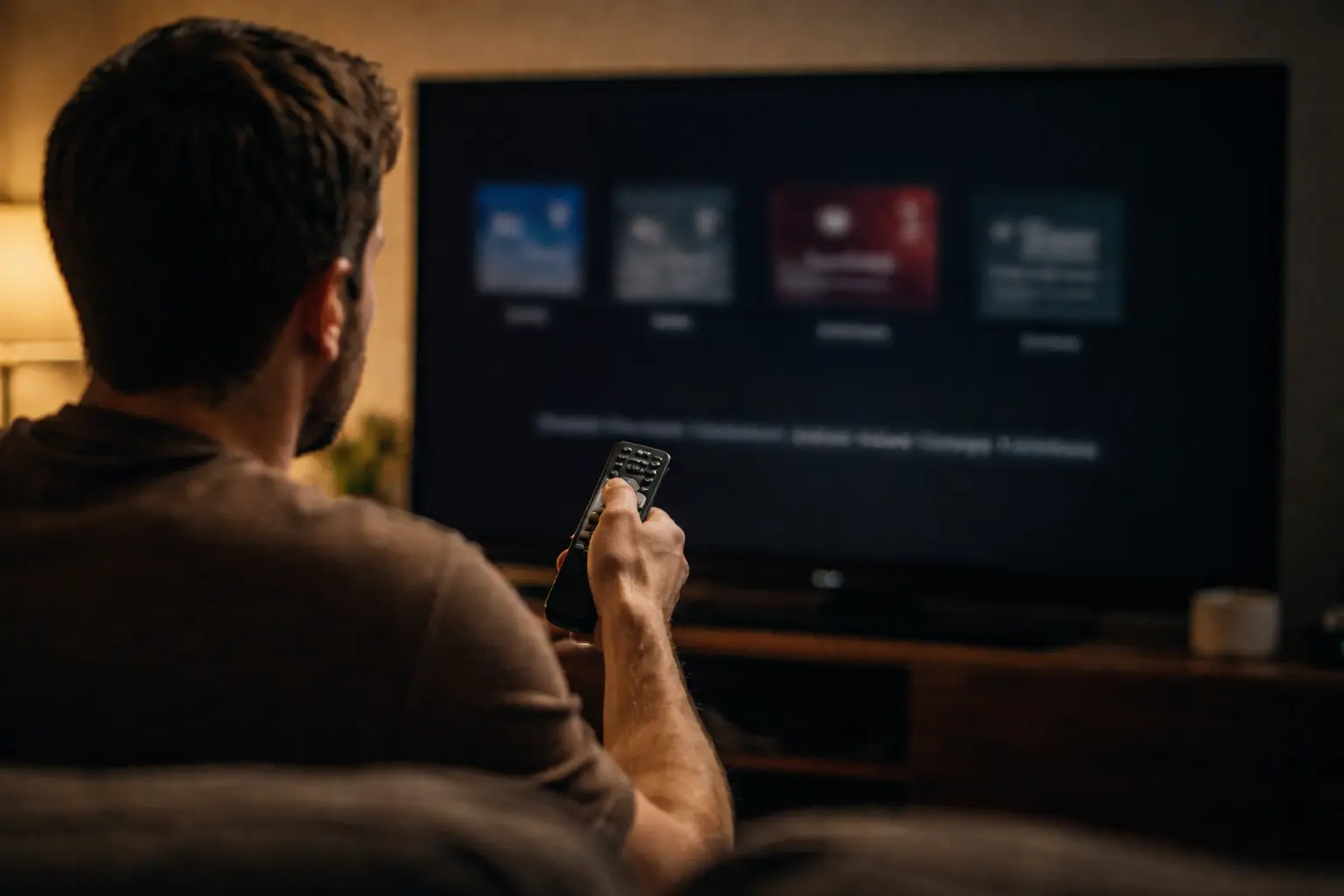
Vous voulez vous déconnecter de Netflix sur une télévision (smart TV, box, console, Chromecast/Fire TV, TV d’hôtel…) ? Selon l’appareil, l’option n’est pas toujours au même endroit, mais il existe 3 méthodes fiables :
- Se déconnecter depuis l’app Netflix sur la TV (menu “Obtenir de l’aide”).
- Afficher le menu caché avec un raccourci télécommande (si “Aide / Get Help” n’apparaît pas).
- Déconnecter la TV à distance depuis votre compte Netflix (pratique si vous n’avez plus accès à l’appareil).
On fait tout pas à pas.
Méthode 1 — Se déconnecter de Netflix sur TV depuis l’application
Sur la majorité des téléviseurs, l’option se trouve dans le menu latéral Netflix, sous “Obtenir de l’aide”.
Étapes (fonctionne sur beaucoup de TV / box / consoles)
- Ouvrez Netflix sur votre TV.
- Allez sur l’écran d’accueil Netflix.
- Ouvrez le menu (souvent en allant tout à gauche avec la télécommande).
- Descendez jusqu’à Obtenir de l’aide / Get Help.
- Sélectionnez Se déconnecter / Sign out puis confirmez.
✅ Vous revenez à l’écran de connexion, et votre compte n’est plus actif sur cette TV.
Méthode 2 — Si vous ne trouvez pas “Obtenir de l’aide” : le raccourci télécommande (menu caché)
Sur certains appareils (TV d’hôtel, anciennes interfaces, box spécifiques), le menu “Aide” n’apparaît pas. Netflix indique un raccourci universel qui fait apparaître un menu avec Se déconnecter / Reset / Désactiver.
Raccourci à entrer avec la télécommande (dans l’app Netflix)
Haut, Haut, Bas, Bas, Gauche, Droite, Gauche, Droite, Haut, Haut, Haut, Haut
Ensuite :
- choisissez Se déconnecter (ou Désactiver)
- confirmez
💡 Si le raccourci ne marche pas du premier coup : faites-le lentement, en restant dans l’app Netflix.
Méthode 3 — Déconnecter Netflix à distance (si vous n’avez plus la TV)
Si vous avez oublié de vous déconnecter (Airbnb, hôtel, TV d’un proche), la méthode la plus propre est de passer par la page Netflix Gérer les accès et les appareils.
Déconnecter un appareil précis
- Allez sur la page Gérer les accès et les appareils.
- Trouvez la TV/appareil dans la liste.
- Cliquez sur la flèche, puis Se déconnecter.
Se déconnecter de tous les appareils (solution “radicale”)
Sur la même page, vous pouvez aussi choisir Se déconnecter de tous les appareils.
⚠️ Netflix précise que tous les appareils ne s’affichent pas forcément (ex : inactifs depuis un moment), et qu’il peut y avoir un délai avant d’apparaître dans la liste.
Comment déconnecter Netflix sur TV si l’app est bloquée
Si Netflix bug ou ne répond pas :
- essayez de revenir à l’accueil Netflix
- cherchez un écran “Erreur” ou “Plus de détails” → Se déconnecter / Reset (selon appareil)
- sinon utilisez le raccourci télécommande (méthode 2)
Bon réflexe : sécuriser votre compte après déconnexion (surtout TV partagée)
Si vous vous déconnectez parce que vous pensez que quelqu’un a accès :
- déconnectez tous les appareils
- changez le mot de passe
- reconnectez-vous uniquement sur vos appareils
La page “Gérer les accès et les appareils” est la base pour reprendre le contrôle rapidement.
FAQ — Déconnecter Netflix sur TV
Comment se déconnecter de Netflix sur télévision ?
Dans l’app Netflix : menu latéral → Obtenir de l’aide → Se déconnecter → confirmer.
Comment déconnecter Netflix sur TV si je ne vois pas “Aide” ?
Utilisez le raccourci : Haut Haut Bas Bas Gauche Droite Gauche Droite Haut Haut Haut Haut, puis choisissez Se déconnecter.
Comment déconnecter Netflix sur une TV d’hôtel / Airbnb à distance ?
Allez dans Gérer les accès et les appareils, puis déconnectez l’appareil concerné (ou tous les appareils).
Se déconnecter de Netflix supprime-t-il mon compte ?
Non. Vous vous déconnectez seulement de l’appareil. Votre compte reste actif.
À retenir
- La méthode la plus simple : Obtenir de l’aide → Se déconnecter sur la TV.
- Si l’option n’existe pas : raccourci télécommande (Haut Haut Bas Bas…).
- Si vous n’avez plus l’appareil : déconnexion à distance via Gérer les accès et les appareils
Foire aux questions
Netflix